
 Nick Quirk
 Learning how to edit WordPress themes comes down to picking the right tool for the change you want, then making that change somewhere it won’t get wiped by the next update. In 2026 you have five realistic options: the Site Editor, the classic Customizer, a block or page builder, custom CSS, and direct template files in a child theme. This guide walks through each one, in order of risk.
We support thousands of WordPress sites, and the single most common support ticket after a theme edit is “my changes disappeared.” That is almost always an edit made in the wrong place. Let’s fix that first.
Know Which Kind of Theme You’re Editing
Before you change anything, check what type of theme is active. Go to Appearance in your WordPress dashboard and look at the submenu.
- If you see Editor, you’re running a block theme (Twenty Twenty-Four, Twenty Twenty-Five, Ollie, Blocksy in FSE mode). Almost everything is editable visually.
- If you see Customize and Widgets, you’re on a classic theme (Astra, GeneratePress, Kadence in classic mode, most older premium themes). You’ll use the theme customizer plus PHP templates.
- If you see both, the theme is hybrid and supports parts of full site editing.
This one check decides everything that follows. Roughly two-thirds of the sites we migrate still run classic themes, so don’t assume the Site Editor tutorials you find on YouTube apply to you.
Do These Three Things First
Theme edits are the easiest way to white-screen a live site, and they take about four minutes to protect against.
- Take a manual backup. Daily automated backups are fine, but take a fresh one immediately before you touch code so your restore point is minutes old, not hours.
- Work on staging. Clone the site, edit there, push when it looks right. Any decent managed host gives you one-click staging at no extra cost.
- Set up a child theme if you plan to touch template files or
functions.php. The official WordPress child theme documentation covers the two files you need:style.cssandfunctions.php.
Edits made directly in a parent theme’s files are overwritten the moment that theme updates, which for actively maintained themes is every six to ten weeks. That’s the whole reason child themes exist.
Method 1: The Site Editor (Block Themes)
Go to Appearance > Editor. You get five sections: Navigation, Styles, Pages, Templates and Patterns. Most people spend their time in the first two.
Under Styles, the half-circle icon opens global settings for typography, colors, layout width and block defaults. Change your body font here and it updates across every template at once, which is faster than editing forty pages by hand. Under Templates, you can edit the single post layout, the 404 page, the archive, and the header and footer template parts.
Two things worth knowing: every change is saved to the database, not to theme files, so it survives theme updates. And the “Revisions” panel under Styles lets you roll back to any earlier version, which beats guessing what you changed at 11pm.
Method 2: The WordPress Customizer (Classic Themes)
Navigate to Appearance > Customize for a live preview panel on the left and your site on the right. Nothing goes live until you hit Publish, so it’s a genuinely safe place to experiment.
What’s available depends on the theme, but you’ll usually find site identity and logo, colors, header and footer layout, blog and archive settings, sidebar and widget placement, and menus. Premium themes like Astra Pro or Kadence add dozens more panels here.
We cover managed wordpress hosting vs shared hosting in more depth in Managed WordPress Hosting vs Shared Hosting: Which Is Right for Your Site?.
Related reading: How Much Does Managed WordPress Hosting Cost in 2026?.
The Customizer is still the fastest way to customize your WordPress site if you don’t write code. It just can’t change the underlying HTML structure of a template, and that’s where the next methods come in.
Method 3: Block and Page Builders
Elementor, Bricks, Beaver Builder and Divi all include theme building, meaning you can replace your theme’s header, footer, single post and archive templates with drag-and-drop layouts. For a marketing site or a landing page heavy build, this is often the pragmatic answer.
The tradeoff is weight. Builder-driven templates typically add 150KB to 400KB of CSS and JavaScript per page compared to a native block theme, and that shows up in Core Web Vitals. If you go this route, pair it with aggressive caching. Our LiteSpeed Cache setup handles most of the damage through CSS combining and critical CSS generation.
Method 4: Additional CSS for Small Visual Tweaks
For anything cosmetic (button radius, heading spacing, hiding a stray element), skip the template files. Go to Appearance > Customize > Additional CSS, or in block themes use Styles > Additional CSS inside the Site Editor.
Right-click the element in your browser, choose Inspect, and copy the class name. Then write your rule against that class. CSS added here is stored in the database and is not affected by theme updates, which makes it the safest place for 80% of the small changes people actually want.
Method 5: Editing Template Files Directly
This is the advanced tier, and where a child theme stops being optional. WordPress removed the built-in theme file editor from most managed environments for good reason: a single missing semicolon in functions.php takes the whole site down.
The safer workflow looks like this:
- Connect over SFTP or open the file manager in your hosting panel.
- Copy the parent template you want to change (say
single.phporcontent-page.php) into your child theme folder, keeping the same filename and path. - Edit the copy. WordPress loads the child version instead of the parent automatically.
- Add PHP snippets and hooks to the child theme’s
functions.php, never the parent’s. - Test on staging, then deploy. If you use version control, a Git-based deployment workflow gives you a clean rollback path.
If you’d rather build from scratch than modify someone else’s work, classic theme development starts with style.css, index.php and functions.php, while a block theme needs theme.json and a templates folder. Developers who go far enough down that road sometimes end up selling themes commercially.
Where the WordPress Theme Editor Went
The old Appearance > Theme File Editor still exists in classic themes on standard installs, but many managed hosts disable it via DISALLOW_FILE_EDIT in wp-config.php. That isn’t a bug. Browser-based file editing is a favorite target for attackers who compromise an admin account, since it lets them inject PHP without touching the server.
If you need it and understand the risk, your host can toggle it. We’d rather hand you SFTP credentials and staging.
Which Method Should You Use?
- Colors, fonts, logo, layout width: Site Editor Styles or the Customizer.
- Spacing, borders, hiding elements: Additional CSS.
- Custom landing pages and marketing layouts: a block or page builder.
- Changing what data a template outputs: child theme template files.
- Adding functionality: a site-specific plugin or child theme
functions.php.
One more consideration: heavier customization means heavier pages, and heavier pages need better infrastructure. Content-dense sites, whether that’s a high-traffic magazine or a course platform, feel theme bloat far sooner than a five-page brochure site. We wrote more about that ceiling in our piece on how well WordPress scales.
Frequently Asked Questions
Why are people moving away from WordPress?
They mostly aren’t: WordPress still powers around 43% of all websites according to W3Techs, a figure that has moved only a couple of points in five years. The churn you hear about is concentrated in simple brochure sites moving to Wix, Squarespace or Webflow, while complex publishing and ecommerce builds keep landing on WordPress because of plugin depth and data ownership.
Can you change a WordPress theme and keep content?
Yes, all posts, pages, media and comments stay intact because they live in the database, not the theme. What you can lose is theme-specific styling, widget placement, custom post templates and any shortcodes the old theme registered, so budget two to six hours of cleanup after a switch and always test on staging first.
How do I edit an existing WordPress site?
Log in at yoursite.com/wp-admin, then use Pages or Posts for content and Appearance for design. For a site you inherited, spend the first 20 minutes identifying the active theme, the page builder (if any) and the plugin list before you change a thing, because that determines which editing method will actually stick.
Where is the theme editor in WordPress?
Block themes use Appearance > Editor, and classic themes use Appearance > Theme File Editor for raw code plus Appearance > Customize for visual settings. If neither code editor appears, your host has disabled file editing for security, and SFTP or the hosting file manager is the alternative.
Do I need a child theme for every edit?
No, only for changes to PHP template files or functions.php. Anything done through the Site Editor, the Customizer, Additional CSS or a page builder is stored in the database and survives theme updates without a child theme, which covers the majority of edits most site owners make.
Want a Safer Place to Edit Your Theme?
Every WebVibo plan includes one-click staging, daily backups with instant restore, SFTP and Git access, so a broken template is a two-minute rollback instead of a lost afternoon. Compare our WordPress hosting plans or start a 14-day trial and migrate your site free.
Related Articles
 WordPress Tutorials
How to Create a Vanity URL in WordPress (2026 Guide)
Learn how to create a vanity URL in WordPress using a plugin, a redirect rule or server config, plus naming tips, caching gotchas and click tracking.
 Nick Quirk
 WordPress Tutorials
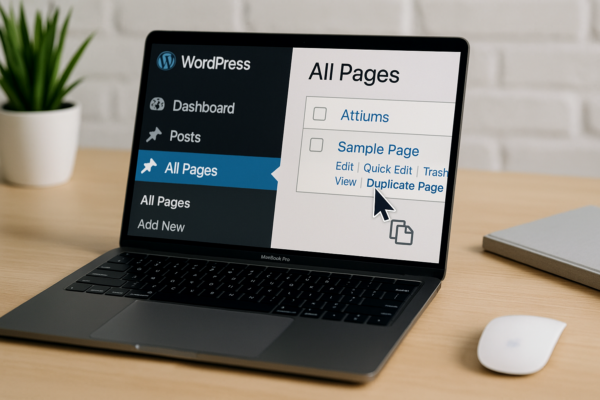
How Do I Duplicate a Page in WordPress? 4 Methods for 2026
Learn how to duplicate a page in WordPress with or without a plugin, in Elementor or Divi, plus what cloning does not copy. Step-by-step 2026 guide.
Nick Quirk
 WordPress Tutorials
How to Create an Online Course With WordPress in 2026
A practical 2026 walkthrough on how to create an online course with WordPress: LMS plugin picks, video delivery, payments, hosting and launch-day load.
Nick Quirk