
 Nick Quirk
 If you want to know how to create a resource library in WordPress, the short answer is this: pick a storage model (media library, custom post type or a document library plugin), build one archive page with search and filters, then decide who gets access. Most site owners can have a working library live in an afternoon. Keeping it fast and measurable is the part people skip, and that’s where we’ll spend extra time.
What Is a WordPress Resource Library?
A resource library is a single browsable page that collects your downloadable and reference material: PDFs, templates, spreadsheets, checklists, whitepapers, videos and slide decks. Some people call it a content library, a document library or even a WordPress file server, depending on how locked down it is.
The difference between a blog archive and a real library is retrieval. A library assumes visitors arrive knowing roughly what they need, so search, categories and file-type filters matter more than publish dates.
Step 1: Choose Your Library Model Before You Touch a Plugin
The access model changes everything downstream, including which plugin you buy. I’d settle this first, on paper, in about ten minutes.
- Open library: anyone can browse and download. Best for SEO, since Google can index each resource page.
- Gated (email-for-access): visitors trade an email address for the download. Expect conversion rates of roughly 15 to 40 percent on a well-matched offer.
- Member-only: files sit behind a login, often tied to a paid plan or a course. This needs user roles and protected file paths, not just a hidden page.
- Internal/client library: staff or client documents only. Treat it like a private file server with restricted URLs.
Plenty of sites run two tiers: a free resource library that’s fully public, plus a premium shelf for customers. That hybrid usually pulls in more email signups than gating everything.
Step 2: Build It the Free Way (No Paid Plugin)
You can create a usable library with core WordPress alone. It won’t have instant AJAX filtering, but it ranks well and costs nothing.
- Upload your files to the Media Library, using clean filenames like 2026-content-calendar-template.pdf instead of final_v3_FINAL.pdf.
- Create a Resources page and organise it with headings per topic, then a bulleted list of links under each.
- Give big or important assets their own post so each one has a title, description, preview image and indexable URL.
- Add a category or tag such as “Resource” so you can pull an automatic list with a Query Loop block.
- Drop in a search block at the top of the page. On libraries with more than 30 items, search gets used more than any menu.
For PDF-heavy libraries, thumbnails and inline previews raise click-through noticeably. Our walkthrough on adding a PDF to WordPress covers embedding versus straight linking, plus file size limits.
Step 3: Or Use a Custom Post Type for Real Structure
Once you pass roughly 50 resources, a dedicated post type beats a page full of links. You register a “resource” post type, add taxonomies for topic and format, then use custom fields for the file, the gate and the page count.
The official WordPress documentation on custom post types shows the registration arguments, and plugins like CPT UI or ACF handle it without code. Teams shipping this as part of a theme should keep it in version control; our Git-based WordPress hosting makes deploying those template changes far less nerve-wracking than editing files over SFTP.
Plugin Options Worth Comparing
- Document Library Pro (Barn2): the most complete WordPress document library option, with sortable tables, AJAX search, filters and folder support. Around $99 per year for a single site.
- Posts Table Pro: lighter, same maker, good if your resources already exist as posts.
- FileBird: a document library and folder manager focused on organising the Media Library itself. There’s a capable free version.
- Simple Download Monitor: free, tracks download counts per file, ideal if analytics matter more than layout.
- WP Download Manager: handles gating, password protection and per-file access rules.
If you’re comparing a free versus paid route, start free and upgrade only when filtering becomes the bottleneck. A Document Library Pro free trial equivalent doesn’t really exist, so test the free alternatives first.
Step 4: Make Each Resource Findable
A library buried three clicks deep gets ignored. Link it from your main navigation, your footer and any related blog post, then give each item a proper description of 40 to 80 words.
Accessibility matters here too. Tagged, readable PDFs with real text (not scanned images) meet WCAG guidance and are the only ones search engines can index properly. Add descriptive link text instead of “click here”, and state the file format and size next to every download.
Step 5: Keep the Library Fast Under Load
This is the gap most tutorials skip. A library page listing 200 files pulls hundreds of queries, thumbnails and metadata rows, and a marketing email can send 3,000 people at it in twenty minutes.
- Paginate at 25 to 50 items per view rather than loading everything at once.
- Cache the archive page so repeat visits don’t re-run the queries. Our LiteSpeed Cache setup handles this at the server level.
- Serve files from a CDN so a 30 MB whitepaper doesn’t hammer your origin.
- Compress PDFs before upload. Cutting a 25 MB file to 4 MB is usually possible with no visible quality loss.
- Watch your PHP memory and upload limits if you’re bulk-importing hundreds of documents.
Growing libraries also eat storage and bandwidth quickly, which is why business-grade WordPress hosting tends to be the right home for one once downloads pass a few thousand a month.
Step 6: Measure What People Actually Download
Download counts tell you what to build next. Track file-level clicks, not just pageviews, and review the numbers monthly.
- Top 10 downloads, so you know which topics deserve deeper resources.
- Zero-download items, which usually need a better title or should be retired.
- Search terms typed into the library with no results.
- Gated form conversion rate per asset.
Server-side WordPress hosting analytics catch downloads that ad blockers hide from JavaScript tracking, which on technical audiences can be 20 percent or more of real activity.
Maintenance: A Quarterly 30-Minute Pass
Libraries rot faster than blogs. Every quarter, check for broken file links, update anything with a year in the title, re-export templates that reference old pricing, and confirm your access rules still work after plugin updates.
Structure carries over to other page types as well. The same custom post type and taxonomy thinking powers a meet the team page, and it scales up to directory-style projects like a listings site built with WordPress.
Frequently Asked Questions
Can I create a resource library in WordPress for free?
Yes, a free resource library is achievable with core blocks alone: one page, headings per topic, the Query Loop block and a search block. Free plugins such as FileBird or Simple Download Monitor add folders and download counts. Paid tools mainly buy you AJAX filtering and table layouts.
How many files can a WordPress document library hold?
WordPress itself handles tens of thousands of media items, but performance usually degrades past 5,000 without folder organisation and caching. Beyond that point, most people move large files to object storage or a CDN and keep only the metadata in the database.
What’s the difference between a resource library and a document library?
A document library is typically a searchable table of files, often internal or client-facing, while a resource library is marketing-facing and mixes PDFs, videos and templates with written context. The technical build overlaps heavily; the wording reflects intent more than architecture.
Should I gate my downloads behind an email form?
Gate roughly 20 to 30 percent of your library, not all of it. Ungated resources earn links and rank in search, while your two or three highest-value assets (templates, benchmark reports) do the email capture work.
How do I stop people sharing direct file URLs?
Use a plugin that stores files outside the public uploads folder and serves them through a token or login check. Simply hiding the page won’t work, since any direct link to /wp-content/uploads/ stays publicly reachable.
Ready to Host a Library That Loads Fast?
If your resource library is about to carry real download traffic, put it on infrastructure built for it. Compare our WordPress hosting plans or ask our team which tier fits your file volume and monthly visitor count.
Related Articles
 WordPress Tutorials
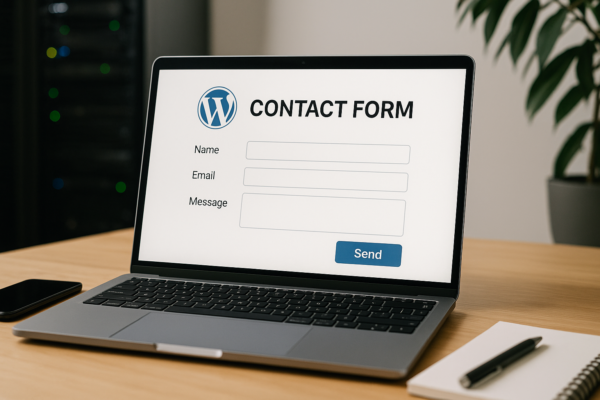
How to Create a Contact Form on WordPress: The 2026 Step-by-Step Guide
Learn how to create a contact form on WordPress with a plugin or with code, then make sure every submission actually lands in your inbox in 2026.
 Nick Quirk
 WordPress Tutorials
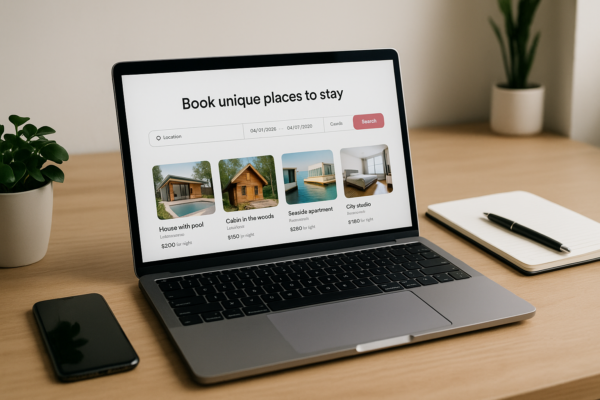
How to Create a Website Like Airbnb With WordPress in 2026
A practical 2026 guide to building a website like Airbnb with WordPress: themes, booking plugins, payouts, real costs and the hosting it needs.
Nick Quirk
 WordPress Tutorials
How to Update a WordPress Theme in 2026 Without Breaking Your Site
Learn how to update a WordPress theme safely in 2026: dashboard updates, manual ZIP uploads, child themes, backups and rollback steps that protect your edits.
Nick Quirk