
 Nick Quirk
 Learning how to create an online course with WordPress comes down to four decisions: which LMS plugin runs your lessons, where your videos actually live, how you take payment, and whether your hosting can handle a few hundred logged-in students at once. The software side takes an afternoon. The part most guides skip, the infrastructure that keeps a paid course from crawling on launch day, is where we spend most of this post.
Below is the full build, from empty WordPress install to first sale, with real costs and the technical gotchas we see on customer sites every week.
Why WordPress Still Beats Hosted Course Platforms
Teachable, Kajabi and Thinkific are simpler on day one, but they take a cut or charge $99 to $199 per month, and you never own the audience. With a self-hosted setup you keep 100% of revenue minus payment processing, roughly 2.9% plus 30 cents per transaction.
The trade-off is honest: you’re responsible for uptime, updates and backups. That’s the recurring theme in the Reddit threads on this topic, and it’s fair. It’s also solvable with managed WordPress course hosting that handles the server layer for you.
- Ownership: your content, your email list, your SEO equity.
- Flexibility: a course, a blog, a membership area and a store on one domain.
- Cost at scale: a 500-student course costs the same to host as a 50-student one, give or take bandwidth.
Step 1: Choose Your LMS Plugin
Your LMS plugin creates the course structure, lesson drip, quizzes and student progress tracking. All the major options have a free tier, so you can build and test a full curriculum before spending anything.
- Tutor LMS (free core, Pro around $199/yr): drag-and-drop course builder, strong quiz engine, good for a first course.
- LearnDash (from about $199/yr): the enterprise default, best reporting, no free version.
- LifterLMS (free core, add-ons from roughly $199/yr): excellent for coaching plus course hybrids.
- Sensei LMS (free, Pro around $179/yr): built by the Automattic team, so it plays nicely with WooCommerce and blocks.
- Masteriyo (free, Pro from about $99/yr): the lightest of the group, fewer database queries per page.
If you want the completely free route, Sensei LMS or Tutor LMS free plus Stripe payments will genuinely sell a course. You can browse install counts and update history in the WordPress plugin directory before committing to one.
Step 2: Get the Hosting Right Before You Build
Here’s the detail that trips people up. Every logged-in student bypasses your page cache, so a course site behaves less like a blog and more like a small application. Twenty students clicking through lessons at once means twenty uncached PHP requests plus database writes for progress tracking.
What that means practically:
- PHP 8.2 or newer with generous memory (256 MB minimum, 512 MB is safer for LearnDash).
- Object caching (Redis or Memcached) so repeat database queries don’t hit MySQL every time.
- A page cache that respects logged-in cookies but still serves your sales pages instantly. Our LiteSpeed Cache setup handles that split automatically.
- Daily automated backups because student progress data lives in your database, and losing it is worse than losing a blog post.
Shared hosting at $4 a month will run a course site with 20 students. It will not survive a launch email to 3,000 subscribers.
Step 3: Plan the Curriculum Before You Record
Write the outcome first, then reverse-engineer the modules. A course that promises “build and deploy your first React app” is easier to sell than one called “React fundamentals”, and it tells you exactly which lessons to cut.
A structure that consistently works: 4 to 8 modules, 4 to 7 lessons each, and no single video over 12 minutes. Completion rates drop sharply past that, which matters because finished students leave testimonials.
Step 4: Build the Course in WordPress
With the plugin active, the build itself is straightforward. Create the course, add sections, then add lessons inside each section.
- Create the course shell: title, outcome-focused description, featured image, price.
- Add modules and lessons in your LMS builder, saving as drafts until the media is ready.
- Embed video from an external host (more on that below), never as a direct media library upload.
- Attach workbooks and templates. Our guide on adding a PDF to WordPress covers the upload and embed options.
- Add a short quiz per module plus one certificate at the end. Quizzes lift completion more than any design tweak.
- Set drip content if you want to pace students weekly instead of dumping everything at once.
Where to Put Your Videos
Do not serve course video from your own web server. One hour of 1080p video is roughly 1.5 to 2 GB of transfer per viewer, so a 6-hour course with 200 students can push 2 TB in a month.
Use Bunny Stream (about $5 per TB delivered), Vimeo (from around $20/mo with domain privacy), or unlisted YouTube if you’re testing the idea for free. A player plugin like Presto Player adds resume-where-you-left-off and hides YouTube branding.
Step 5: Take Payments and Sell
Most LMS plugins include their own checkout with Stripe and PayPal, which is enough for a single course. Add WooCommerce only if you need coupons, order bumps, tax handling or a physical product alongside the course.
- One-time price for a standalone course, typically $49 to $499 depending on outcome.
- Subscription for a library of courses, usually $19 to $79 per month.
- Payment plans for anything over $300, which reliably lifts conversions.
Build a dedicated sales page separate from the course page, and keep it cached and fast. Google’s Largest Contentful Paint guidance puts the good threshold at 2.5 seconds, and sales pages heavy with autoplay video routinely miss it by double.
Step 6: Launch Day, Then Scale
Launch traffic arrives in a 30-minute spike, not a smooth curve. Before you send the email, do three things: run a staging test with 20 concurrent logins, confirm your backup ran, and check that transactional emails (receipts, enrollment confirmations) send through a proper SMTP service rather than PHP mail.
After launch, watch behaviour rather than vanity metrics. Your LMS reports show lesson-level drop-off, and server-side hosting analytics show whether slow response times are causing it. If you’re customising templates or writing your own add-ons, a Git-based deployment workflow keeps changes off the live site until they’re tested. And if you’re tempted to have AI write a plugin for you, read our honest take on whether Replit can build a WordPress plugin first.
Scaling from there is mostly product work: bundles, a community forum, group licences for teams, and a cohort option at 3 to 5 times your self-paced price.
Frequently Asked Questions
What is the best platform to create an online course?
For creators who want to keep 100% of revenue and own their audience, self-hosted WordPress with an LMS plugin is the strongest option, with total costs of roughly $30 to $60 per month once hosting and video delivery are included. Teachable and Kajabi are faster to set up but charge $99 to $199 monthly and limit how much you can customise.
Can ChatGPT create a course?
ChatGPT can draft an outline, quiz questions and lesson scripts in minutes, but it cannot supply the experience, examples or credibility students pay for. Treat it as a research and editing assistant, then record everything in your own voice, since near-identical AI-written courses are already flooding marketplaces and getting refunded.
What is the best WordPress course plugin?
LearnDash remains the most capable for serious course businesses at around $199 per year, while Tutor LMS and Sensei LMS both offer free versions that handle lessons, quizzes and certificates. Pick based on reporting depth: if you need per-student analytics and group licences, pay for LearnDash; otherwise start free.
Can I sell courses on WordPress?
Yes, and you can start for $0 in software by combining a free LMS plugin with Stripe, which charges about 2.9% plus 30 cents per transaction. You’ll still need hosting and a domain, and any site taking payments needs an SSL certificate, which should come included with your plan.
How long does it take to build a course site in WordPress?
Most people get a functional course site live in 8 to 15 hours of work, spread over a week. Recording and editing the video is the long pole, typically 3 to 5 hours of work per finished hour of content.
Ready to Host Your Course Somewhere It Won’t Buckle?
If you’re building a paid course, the hosting layer is the one part you can’t retrofit on launch morning. Take a look at our WordPress hosting for course creators or talk to a specialist about what your student numbers will actually need.
Related Articles
 WordPress Tutorials
How to Create a Vanity URL in WordPress (2026 Guide)
Learn how to create a vanity URL in WordPress using a plugin, a redirect rule or server config, plus naming tips, caching gotchas and click tracking.
 Nick Quirk
 WordPress Tutorials
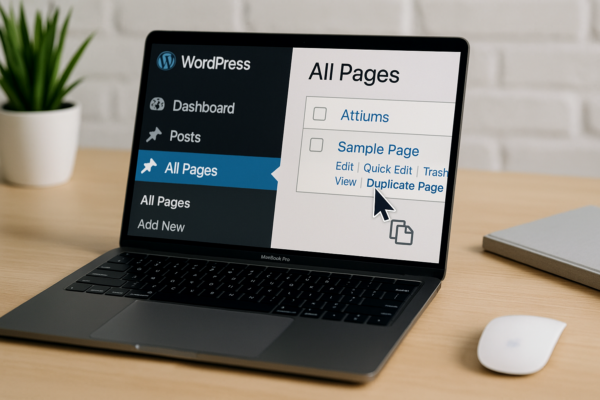
How Do I Duplicate a Page in WordPress? 4 Methods for 2026
Learn how to duplicate a page in WordPress with or without a plugin, in Elementor or Divi, plus what cloning does not copy. Step-by-step 2026 guide.
Nick Quirk
 WordPress Tutorials
How to Add Live Chat to a WordPress Website (2026 Guide)
Learn how to add live chat to a WordPress website in 2026: plugin setup, free options, manual script installs, and how to keep the widget from slowing your site.
Nick Quirk