
 Nick Quirk
 Managing multiple WordPress sites gets awkward around site number five. That’s usually the point where the old routine of logging into cPanel, clicking File Manager, checking a database, then opening each wp-admin separately starts eating a full morning. A single dashboard collapses that work into one screen, while cPanel keeps you closer to the server itself, and the right answer depends less on preference than on how many sites you run and who has to maintain them.
The two models, plainly explained
cPanel is a server control panel. It was built to manage hosting accounts, not content, so it thinks in terms of domains, FTP users, email boxes, cron jobs, DNS zones and MySQL databases. WordPress sits inside that structure as a folder full of files plus a database, and cPanel treats it like any other application.
A single WordPress dashboard (the model used by most managed hosts) flips the hierarchy. Sites are the top-level objects, and every action you’d normally take is exposed per site: clone, stage, back up, update plugins, purge cache, flip PHP versions, add a collaborator. You still get SSH and database access on decent platforms, but you rarely need them.
- cPanel: server-first, application-agnostic, familiar to anyone who has worked in shared hosting since 2010.
- Single dashboard: site-first, WordPress-aware, built around the tasks that repeat across a portfolio.
- Neither is WordPress multisite, which is a separate feature inside WordPress itself and a different decision entirely.
Where cPanel still earns its keep
I’d push back on the idea that cPanel is obsolete. If you host a mixed bag of things (a Laravel app, three static sites, a legacy PHP tool and two WordPress installs), a server panel handles all of it with one mental model. Email hosting is the other big one, since most managed WordPress platforms deliberately don’t do mailboxes.
cPanel also wins on granular control. You can set a specific cron schedule, tweak a .htaccess rule, add a subdomain in eight seconds, or hand a client SFTP-only access without touching WordPress. For people who already know where everything lives, that speed is real.
- Mixed application stacks on a single server or VPS
- Email accounts, forwarders and spam filtering in the same panel
- Direct file, DNS and database control without abstraction layers
- Lower sticker price on shared plans, often $3 to $12 per month
Where a single dashboard pulls ahead
The advantage isn’t features, it’s repetition. Running plugin updates across 20 sites through cPanel means 20 logins, or a plugin installed on every site to do it remotely. In a consolidated dashboard you see all 20 update states on one screen and push them in a batch, with a backup taken first.
That matters more than it sounds. If each site costs you 12 minutes a month in routine maintenance, a 25-site portfolio burns five hours before you’ve done any billable work. Cut that to three minutes per site and you’ve bought back most of a working day every month.
- Bulk updates for core, plugins and themes, with rollback if something breaks
- Staging on every site, ideally with push and pull, which is why one-click staging workflows save so much rework
- Automated daily backups with per-site restore points instead of a single server-wide archive
- Uptime and performance monitoring per site, so you hear about problems before the client does
- Per-site user roles, so a contractor can touch one project and nothing else
The security gap nobody mentions in the comparison
This is the part most articles skip. The two models don’t just differ in convenience, they differ in where your defences live. WordPress powers roughly 43% of all websites, which makes it the single largest attack surface on the web, and a portfolio multiplies your exposure.
In a classic cPanel setup, hardening is mostly per site and mostly plugin-based. Each install needs its own firewall plugin, its own login limiter, its own malware scanner. Twenty sites means twenty configurations that will drift apart within a year.
We cover this topic in more depth in Bulk Managing WordPress Plugins Across 50+ Client Sites.
A platform dashboard lets you set policy once at the server edge. That’s the difference between server-side and WordPress-side brute force rules, and it’s also why decisions like disabling XML-RPC at the host level scale better than a plugin toggle repeated on every install.
Third-party dashboards: MainWP, CloudPanel, CyberPanel
You don’t have to switch hosts to get a unified view. There are three common paths, and they solve different halves of the problem.
- MainWP is a self-hosted WordPress plugin that turns one install into a control centre for your other sites. It handles bulk updates, backups and uptime checks, and it runs on top of whatever hosting you already have, including cPanel.
- CloudPanel is a lightweight server panel for cloud VPS instances. It’s faster and cleaner than cPanel for PHP and WordPress work, and it’s free, but you’re responsible for the server.
- CyberPanel pairs a free control panel with OpenLiteSpeed, so you get caching baked in. It’s a reasonable middle ground if you want speed without paying cPanel’s per-account licensing.
The trade-off is honest: these tools give you one dashboard, but you still own patching, backups verification and incident response. A managed platform folds that labour into the price.
What it actually costs
cPanel licensing changed the maths. Most hosts now pay per account tier, and shared plans absorb it, but a VPS running 30 accounts can carry $45 to $70 per month in licence fees alone before you count server cost. Managed WordPress plans typically run $20 to $30 per month for a few sites, scaling to roughly $8 to $15 per site at agency volume.
Compare on total cost, not plan price. Add your hourly rate multiplied by maintenance hours, plus the cost of one bad incident: a hacked site cleanup usually runs $200 to $500, and a day of downtime on a client store costs more than a year of hosting.
How to choose for your portfolio
A few rules of thumb from watching people move in both directions:
- One to three sites, plus email: stay on cPanel. The overhead isn’t worth changing.
- Four to fifteen sites: a single dashboard starts paying for itself, particularly if clients are involved. This is the sweet spot for business WordPress hosting.
- Content-heavy publishing: consolidated caching and CDN control matter more than file access, which is the case for magazine and news sites.
- Membership, LMS or ecommerce builds: prioritise isolation and staging, since a broken update on a course site costs revenue immediately.
- Mixed non-WordPress stack: keep a server panel, or run both and let each do what it’s good at.
Running both is more common than people admit. Plenty of agencies keep a cheap cPanel box for email and odd projects, and put every client WordPress site on a managed dashboard where the maintenance burden lives.
Frequently Asked Questions
Is WordPress outdated in 2026?
No, WordPress still powers around 43% of the web and remains the most-used CMS by a wide margin. The core has changed a lot since 2018, with the block editor, full site editing and a faster release cadence. What’s outdated is the old management habit of babysitting each install by hand.
Why are people moving away from WordPress?
The most common reasons are plugin bloat, maintenance fatigue and security anxiety, not a flaw in WordPress itself. Teams that leave usually go to hosted builders for simple brochure sites or headless setups for large content operations. Most of the maintenance complaints disappear on a platform that automates updates, backups and edge-level security.
What are the key differences between WordPress and cPanel?
WordPress is the content management system that runs your website, while cPanel is the hosting control panel that manages the server account the site sits in. You publish posts, install plugins and manage users in WordPress. You create databases, add subdomains, set up email and manage files in cPanel. For details on the underlying setup, see how self-hosted WordPress fits together.
Which managed hosting service is best for hosting WordPress sites?
The best option depends on portfolio size, but look for four non-negotiables: per-site staging, automated daily backups with one-click restore, server-level caching and a WAF included rather than sold as an add-on. Compare real-world load times and support response, not just storage limits. Reading customer reviews and migration experiences tells you more than a feature table.
Can I manage multiple WordPress websites from one login without changing hosts?
Yes, a self-hosted tool like MainWP gives you bulk updates and monitoring across sites on any host, including cPanel accounts. The limitation is that it can’t give you server-level caching, edge firewalls or isolated staging. For those you need the hosting platform itself to be WordPress-aware.
Thinking about consolidating your sites?
If you’re spending more time on maintenance than on client work, we can look at your current setup and map out what a single dashboard would actually save you. Ask us about free migrations and we’ll move your sites across without downtime.
Related Articles
 WordPress Hosting
Best Practices for Hosting High-Traffic Affiliate Marketing WordPress Sites
Best practices for hosting high-traffic affiliate marketing WordPress sites: caching rules, redirect load, database tuning and spike-proof scaling.
 Nick Quirk
 WordPress Hosting
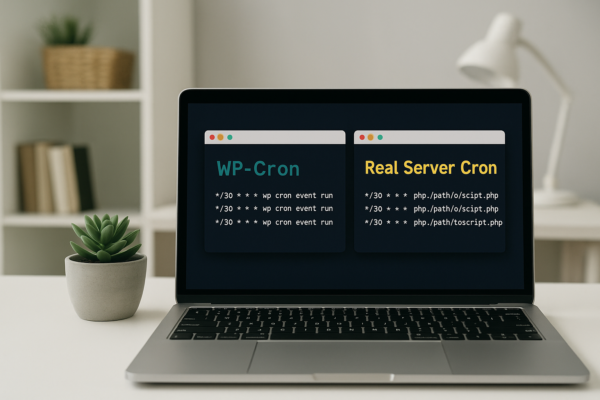
Managing Cron Jobs in WordPress: WP-Cron vs. Real Server Cron
Managing cron jobs in WordPress: how WP-Cron works, why it misses schedules, and how to switch to a real server cron with WP-CLI in 2026.
Nick Quirk
 WordPress Hosting
Hosting Considerations for WordPress Multi-Site (WPMU) Networks
What WordPress Multisite hosting actually needs in 2026: database limits, PHP workers, wildcard SSL, per-site backups and when to split the network.
Nick Quirk
[…] We cover this topic in more depth in Managing Multiple WordPress Sites: Single Dashboard vs. cPanel. […]
[…] you are still weighing control panels against a unified dashboard, our comparison of managing multiple WordPress sites in a single dashboard versus cPanel covers the tradeoffs in more […]
[…] We cover this topic in more depth in Managing Multiple WordPress Sites: Single Dashboard vs. cPanel. […]